Step 3. Configure connection properties
PingOne JavaScript
In this step, you configure the sample application to connect to your PingOne Protect instance and start DaVinci flows.
Optionally, you can configure the API backend application, so you can create and modify the todo items. The API backend app demonstrates introspecting the access tokens issued to the client application, and granting or refusing access to the todo items based on the response.
Configuring the sample client app
In this step, you configure the sample app to connect to the authentication flow you created when setting up your server configuration.
-
Copy the
.env.examplefile in thesdk-sample-apps/javascript/reactjs-todo-davincifolder and save it with the name.envwithin this same directory. -
Open the
.envfile and edit the property values to match the settings you configured in previous steps:WELLKNOWN_URL= WEB_OAUTH_CLIENT= API_URL=http://localhost:9443 DEBUGGER_OFF=true DEVELOPMENT=true PORT=8443 SCOPE='openid profile email phone name revoke' # INIT_PROTECT (optional) - bootstrap | flow # 'bootstrap' will initialize protect at app bootstrap time # 'flow' relies on the PingOne Protect collector for initialization INIT_PROTECT= # PINGONE_ENV_ID - required when ProtectCollector is present PINGONE_ENV_ID=- WELLKNOWN_URL
-
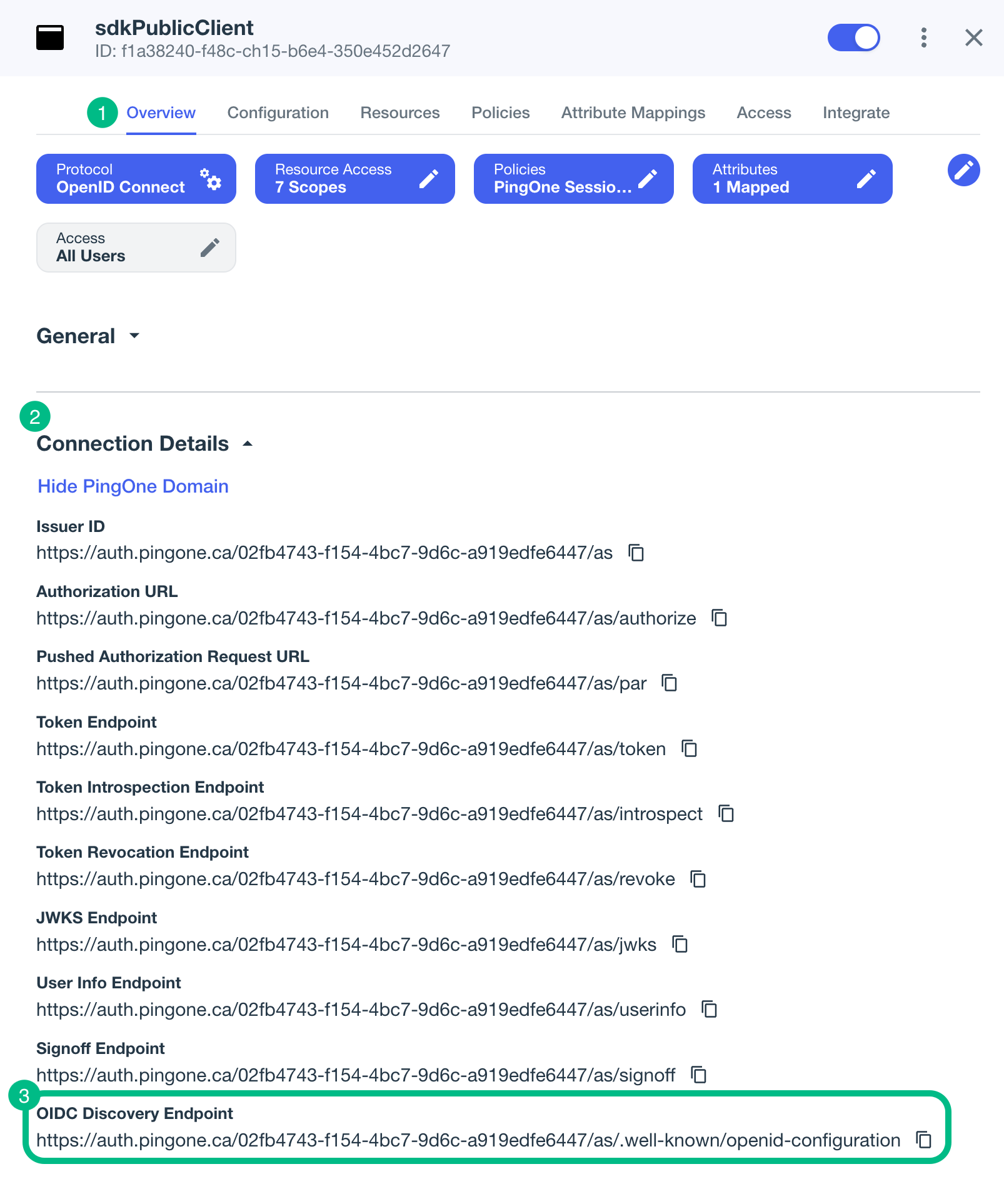
Enter the OIDC Discovery Endpoint value from the client you are connecting to in PingOne.
Example:
WELLKNOWN_URL = https://auth.pingone.ca/3072206d-c6ce-ch15-m0nd-f87e972c7cc3/as/.well-known/openid-configurationHow do I find my PingOne .well-known URL?
To find the
.well-knownendpoint for an OAuth 2.0 client in PingOne:-
Log in to your PingOne administration console.
-
Go to Applications > Applications, and then select your OAuth 2.0 client.
For example, sdkPublicClient.
-
On the Overview tab, expand the Connection Details section, and then copy the OIDC Discovery Endpoint value.
-
- WEB_OAUTH_CLIENT
-
Enter the ID of the client you are connecting to in PingOne.
Example:
WEB_OAUTH_CLIENT=6c7eb89a-66e9-ab12-cd34-eeaf795650b2 - API_URL
-
Optionally, enter the URL and port number on which you are running the API backend server.
For example,
http://localhost:9443The backend API sample is not required to test authentication with this app.
- PORT
-
Enter the port number on which to run the sample app.
For example,
8443 - SCOPE
-
Enter the scopes you want to assign users who complete authentication using the client, separated by spaces.
Example:
SCOPE='openid profile email phone revoke' - INIT_PROTECT
-
The client app supports PingOne Protect risk evaluations.
To enable risk evaluations, specify one of the following options:
bootstrap-
The client app manually initializes the PingOne Protect SDK during startup.
flow-
The client app initializes the PingOne Protect SDK only when encountering the respective collector in the DaVinci flow.
Leave this blank if you do not want to use PingOne Protect in the client app.
- PINGONE_ENV_ID
-
The PingOne environment identifier.
For example,
3072206d-c6ce-ch15-m0nd-f87e972c7cc3This property is only required if you want to use PingOne Protect in the client application, and have set a value in the INIT_PROTECT property.
Otherwise, leave this property empty.
The result resembles the following:
WELLKNOWN_URL=https://auth.pingone.ca/3072206d-c6ce-ch15-m0nd-f87e972c7cc3/as/.well-known/openid-configuration
WEB_OAUTH_CLIENT=6c7eb89a-66e9-ab12-cd34-eeaf795650b2
API_URL=http://localhost:9443
DEBUGGER_OFF=true
DEVELOPMENT=true
PORT=8443
SCOPE='openid profile email phone revoke'

# INIT_PROTECT (optional) - bootstrap | flow
# 'bootstrap' will initialize protect at app bootstrap time
# 'flow' relies on the PingOne Protect collector for initialization
INIT_PROTECT=bootstrap
# PINGONE_ENV_ID - required when ProtectCollector is present
PINGONE_ENV_ID=3072206d-c6ce-ch15-m0nd-f87e972c7cc3
Configuring the sample backend API app (optional)
This optional step configures a simple Node.js server app that provides create, read, update, and delete (CRUD) operations for the todo items.
The backend API app requires access to the same public client that you create earlier, so that it can introspect tokens issued by it.
To configure the backend API app:
-
In the IDE of your choice, open the
sdk-sample-appsfolder you cloned previously. -
Copy the
.env.examplefile in thesdk-sample-apps/javascript/todo-apifolder and save it with the name.envwithin this same directory.The file contains configuration to connect to the same public OAuth 2.0 client as the TODO app itself:
Example default API serversdk-sample-apps/javascript/todo-api/.envfile# 'AIC' or 'PINGONE' SERVER_TYPE= # AM URL for AIC or PingOne base URL with env ID for PingOne SERVER_URL= PORT= # 'alpha' or 'bravo' for AIC server type. Not used for PingOne. REALM_PATH= # Confidential client ID for AIC or WebApp public client ID for PingOne REST_OAUTH_CLIENT= # Confidential client secret for AIC. Not used for PingOne. REST_OAUTH_SECRET= -
Update the configuration block with the details of your server environment.
- SERVER_TYPE
-
Ensures the sample app uses the correct behavior for the different servers it supports, for example the endpoint to use for introspecting tokens received from the client app.
For PingOne tenants, specify
PINGONE. - SERVER_URL
-
The URL of the authorization server to connect to. Enter the base URL of the authentication endpoint for your PingOne instance, followed by the environment ID.
For example, in the Canada region, your server URL value might be
https://auth.pingone.ca/3072206d-c6ce-ch15-m0nd-f87e972c7cc3Do not use the console URL (
https://console.pingone.ca) or app URL (https://apps.pingone.ca) for this property. - PORT
-
The port number on which to run the TODO API server.
You’ll need this port number when configuring the client app to connect to the TODO API server.
If not specified, the TODO API server defaults to running on port
9443 - REALM_PATH
-
This value is not required for PingOne servers.
- REST_OAUTH_CLIENT
-
Enter the ID of the same public client you used for the client application earlier.
For example,
6c7eb89a-66e9-ab12-cd34-eeaf795650b2 - REST_OAUTH_SECRET
-
This value is not required for PingOne servers.
The result will resemble the following:
Example completed API serversdk-sample-apps/javascript/todo-api/.envfile# 'AIC' or 'PINGONE' SERVER_TYPE=PINGONE # AM URL for AIC or PingOne base URL with env ID for PingOne SERVER_URL=https://auth.pingone.ca/3072206d-c6ce-ch15-m0nd-f87e972c7cc3 PORT=9443 # 'alpha' or 'bravo' for AIC server type. Not used for PingOne. REALM_PATH= # Confidential client ID for AIC or WebApp public client ID for PingOne REST_OAUTH_CLIENT=6c7eb89a-66e9-ab12-cd34-eeaf795650b2 # Confidential client secret for AIC. Not used for PingOne. REST_OAUTH_SECRET= -
Save your changes.